
7 Proven Fixes to Stop the Freezing and Lag
If you are looking for effective ArcGIS Pro running slow fixes because the software grinds to a halt every time you pan the map grinds to a halt every time you pan the map, if the beach ball spinner shows up more than your actual data, or if the app has crashed mid-edit and taken your unsaved work with it — you’re not imagining things, and you’re not doing anything wrong. ArcGIS Pro is a demanding piece of software, and it’s notoriously unforgiving on laptops, university lab machines, and anything running on a mechanical hard drive or shared network storage.
The good news: most performance problems in ArcGIS Pro aren’t hardware problems. They’re configuration problems. Before you spend money on a new GPU or a beefier laptop, walk through these seven fixes. They target the exact settings that quietly strangle performance by default, and most take less than five minutes to apply.
Fix 1: Clear the Display Cache
ArcGIS Pro caches drawn map tiles and layer graphics to avoid redrawing everything from scratch every time you pan or zoom. Over time, this cache gets bloated and corrupted, and instead of speeding things up, it starts causing stutters, incomplete redraws, and outright freezes. Clearing the cache is one of the quickest ArcGIS Pro running slow fixes you can run when experiencing screen lagging.
How to clear it:
- Open your project, then go to the Project tab in the ribbon.
- Select Options from the left-hand menu.
- Click on the Display tab.
- Under the caching section, look for Clear Display Cache (in some versions this appears under General rather than Display — check both if you don’t see it immediately).
- Click it, confirm, and restart ArcGIS Pro.
If you’re on a shared or lab machine where cache builds up from multiple users’ sessions, do this at the start of every major project — it takes seconds and often resolves phantom lag that has no obvious cause.
Fix 2: Disable Unnecessary Rendering and Background Processing
ArcGIS Pro tries to be helpful by constantly redrawing layers, running background geoprocessing, and refreshing labels as you work. On a modest machine, this “helpfulness” is exactly what causes the interface to lock up.Applying key ArcGIS Pro running slow fixes like pausing automatic drawing prevents the map from constantly fighting for system resources.
Pause automatic drawing when working with heavy layers:
- At the bottom-right of the map view, click the Pause Drawing button (it looks like a small circular icon) before loading or editing a large dataset. This stops ArcGIS Pro from re-rendering every time you make a change, letting you work in the attribute table or Catalog pane without the map fighting for resources.
Turn off unnecessary background processing:
- Go to Project > Options > Background Processing.
- Reduce the number of background geoprocessing tasks allowed to run simultaneously, especially if you’re on a dual-core or low-RAM machine.
- Disable Popups and turn off dynamic labeling on layers you’re not actively referencing — both consume rendering cycles for zero analytical benefit.
If you’re only working with a handful of layers at a time, turn off visibility for every layer you’re not using. ArcGIS Pro renders what’s checked “on,” regardless of whether you’re looking at it.
Fix 3: Optimize Your Vector and Raster Layers
This is the fix most students and early-career GIS users skip, and it’s often the single biggest performance lever available. Raw, unoptimized data — especially high-resolution imagery or large shapefiles with thousands of features — forces ArcGIS Pro to recalculate spatial relationships every time you interact with it. One of the most overlooked ArcGIS Pro running slow fixes is building pyramids for rasters and adding spatial indexes to vector datasets.
For raster data:
- Build pyramids. Right-click the raster in the Catalog pane, go to Raster Properties, and use the Build Pyramids geoprocessing tool if pyramids weren’t generated automatically on import. Pyramids let ArcGIS Pro display a lower-resolution version when you’re zoomed out, only loading full resolution when you zoom in.
- Convert loose raster files into a managed format like a Mosaic Dataset or Cloud Raster Format (CRF) if you’re working with imagery collections.
For vector data:
- Generate attribute indexes on fields you filter or query frequently (right-click the layer > Data Design > Indexes, or use the Add Attribute Index tool). This dramatically speeds up selections and definition queries.
- Add spatial indexes to feature classes, particularly in file geodatabases where indexes aren’t always rebuilt automatically after edits.
- Where possible, convert shapefiles to feature classes inside a File Geodatabase. Shapefiles have hard limitations (attribute length, file size, indexing) that geodatabases don’t.
Fix 4: Work on Local Storage, Not Network Drives
This one fix alone resolves an enormous share of “ArcGIS Pro is unusably slow” complaints, especially at universities where students are often required to store data on a network drive, cloud-synced folder, or shared server.
Network latency — even on a fast connection — adds delay to every single read/write operation ArcGIS Pro performs. And ArcGIS Pro performs a lot of them: locking files, writing to geodatabases, generating temp files, updating indexes. On a network drive, each of these small operations pays a latency tax. On a local SSD, they’re nearly instantaneous.
What to do:
- Copy your project data, geodatabases, and project (.aprx) file to your local SSD before working, using Catalog > Copy or Windows File Explorer.
- Avoid working directly out of a OneDrive, Google Drive, or Dropbox-synced folder — these add file-locking conflicts on top of the latency problem, which can cause corruption in geodatabases.
- If your institution requires data to live on a network drive for backup purposes, work locally and sync/copy back to the network location at the end of your session, not continuously.
If you’re limited to a spinning hard drive (HDD) rather than an SSD, this fix matters even more — HDDs are the single most common hardware bottleneck in ArcGIS Pro, often worse than an underpowered CPU. If you are testing ArcGIS Pro running slow fixes, moving your project files off network drives and onto a local SSD makes an immediate difference.
Fix 5: Configure GPU and Hardware Acceleration Correctly
ArcGIS Pro relies heavily on GPU rendering, but on laptops with both integrated and dedicated graphics (common in student and budget machines), it sometimes defaults to the weaker integrated GPU — tanking performance without any obvious warning.
Force ArcGIS Pro to use your dedicated GPU:
- Open your computer’s graphics settings (NVIDIA Control Panel or AMD Radeon Settings, or Windows Graphics Settings under System > Display).
- Add
ArcGISPro.exeas a specific application. - Set it to use the High-Performance/Dedicated GPU, not the integrated (Intel) GPU.
Check ArcGIS Pro’s own rendering engine settings:
- Go to Project > Options > Display.
- Look at the Rendering engine settings — ArcGIS Pro primarily uses DirectX on Windows, but you can toggle certain acceleration features here depending on your version.
- If you experience visual glitches or crashes tied to 3D scenes specifically, try toggling hardware acceleration off temporarily to see if it stabilizes — this can indicate outdated GPU drivers rather than a setting problem.
Also worth doing: update your GPU drivers directly from NVIDIA/AMD/Intel’s site rather than relying on Windows Update, which often lags behind.
Fix 6: Set Up Project Page Files and Memory Limits Properly
ArcGIS Pro uses your disk as virtual memory (a “page file”) when RAM runs out — and on machines with 8GB of RAM or less, this happens constantly during geoprocessing or large map renders.Configuring your virtual memory page file on your fastest drive serves as one of the best system-level ArcGIS Pro running slow fixes for low-RAM machines
Check and configure your page file (Windows):
- Search “Advanced System Settings” in the Windows Start menu.
- Under Performance > Settings > Advanced tab, find Virtual Memory and click Change.
- Make sure the page file is located on your fastest local drive (ideally the SSD with your OS), not a secondary HDD.
- Consider setting a custom size (1.5x your physical RAM as a rough starting point) rather than leaving it fully automatic, especially if you multitask heavily.
Within ArcGIS Pro itself:
- Close unused projects and maps within the same session — each open map view consumes its own chunk of memory.
- For geoprocessing-heavy work, check Geoprocessing Options and adjust the number of parallel processes allowed, since running too many simultaneously on a memory-constrained machine causes thrashing rather than speed gains.
Fix 7: Manage Display Quality and Level of Detail (LOD)
ArcGIS Pro’s default display settings prioritize visual fidelity over speed — which makes sense for final map production, but is overkill while you’re just exploring or editing data.Combining scale-dependent rendering with these ArcGIS Pro running slow fixes keeps panning snappy on dense layers.
Reduce display quality while working:
- In the Map tab, look for Display Quality settings (sometimes accessible via the small dropdown near the map’s draw state indicator).
- Lower the quality setting from Maximum to Medium or Fast during active editing sessions, and switch back to high quality only when producing final layouts or exports.
Use scale-dependent rendering (Level of Detail):
- Right-click a layer and go to Properties > General.
- Set a visibility range so complex symbology, labels, or dense point layers only render at closer zoom levels.
- For layers with heavy symbology (graduated colors, complex line styles), simplify the renderer while working, and apply the polished version only for final cartographic output.
This single change — not rendering things you can’t usefully see anyway — often makes panning and zooming feel dramatically snappier, especially with dense vector layers or 3D scenes.
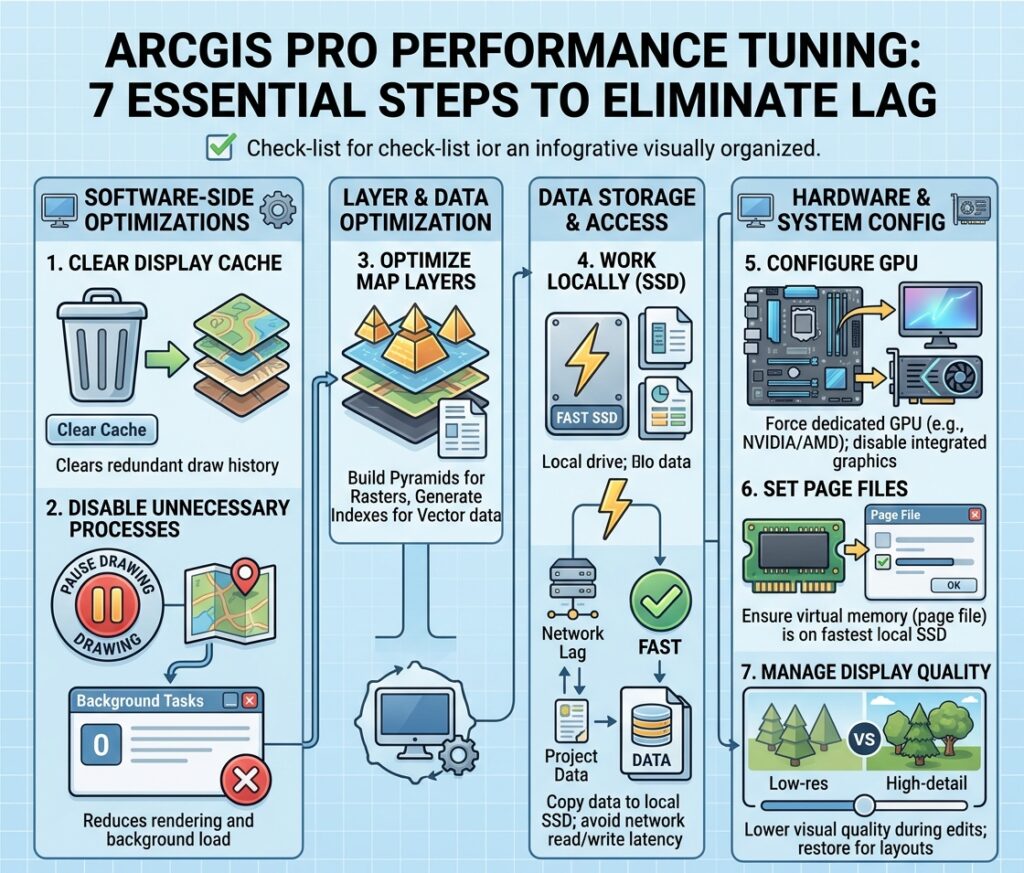
If you are looking for more ways to optimize your spatial workflows beyond these ArcGIS Pro running slow fixes, check out our complete collection of GIS assignment guides and tutorials.
Conclusion: Your Quick-Reference Checklist
Bookmark this before your next ArcGIS Pro session:
- ✅ Clear the display cache (Project > Options > Display)
- ✅ Pause drawing during heavy edits; disable unused background processing
- ✅ Build pyramids for rasters; add attribute and spatial indexes for vectors
- ✅ Move your project and data to a local SSD — never work directly off a network drive
- ✅ Force ArcGIS Pro onto your dedicated GPU; update graphics drivers
- ✅ Put your page file on your fastest local drive; manage geoprocessing parallelism
- ✅ Lower display quality and set LOD ranges while editing; restore quality for final output
None of these fixes require a new laptop. Most take under five minutes, and applying even three or four of them together typically transforms an unusable, freezing ArcGIS Pro session into something that actually keeps pace with your workflow.